Home > Resources > Design & Print > Resolution Explained
Resolution explained
Understand pixels, print size and image quality, so your artwork looks clear abd the size you need.
What does resolution actually mean?
A digital image contains a fixed number of pixels. How closely those pixels are packed into a print size affects how much detail you can see.
Illustrative comparison at the same displayed size.
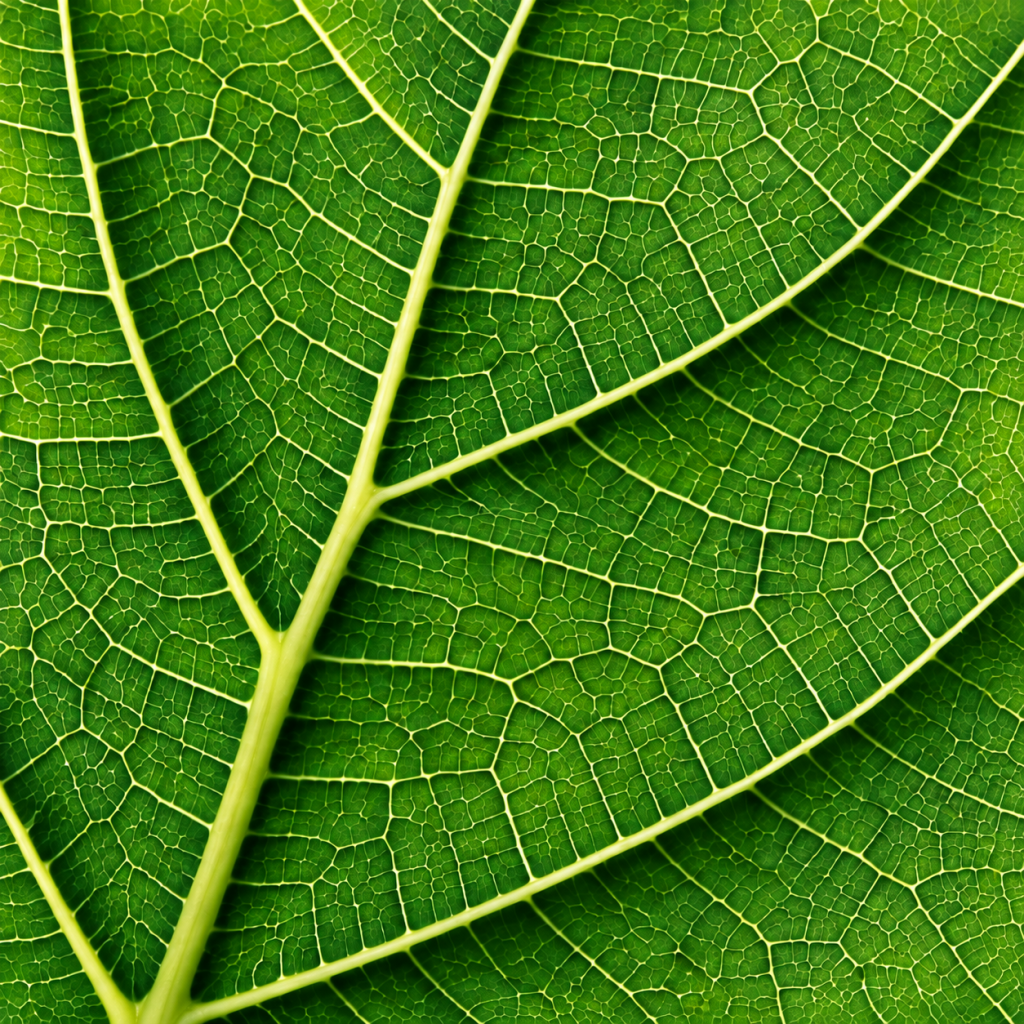
Enough pixels for the size
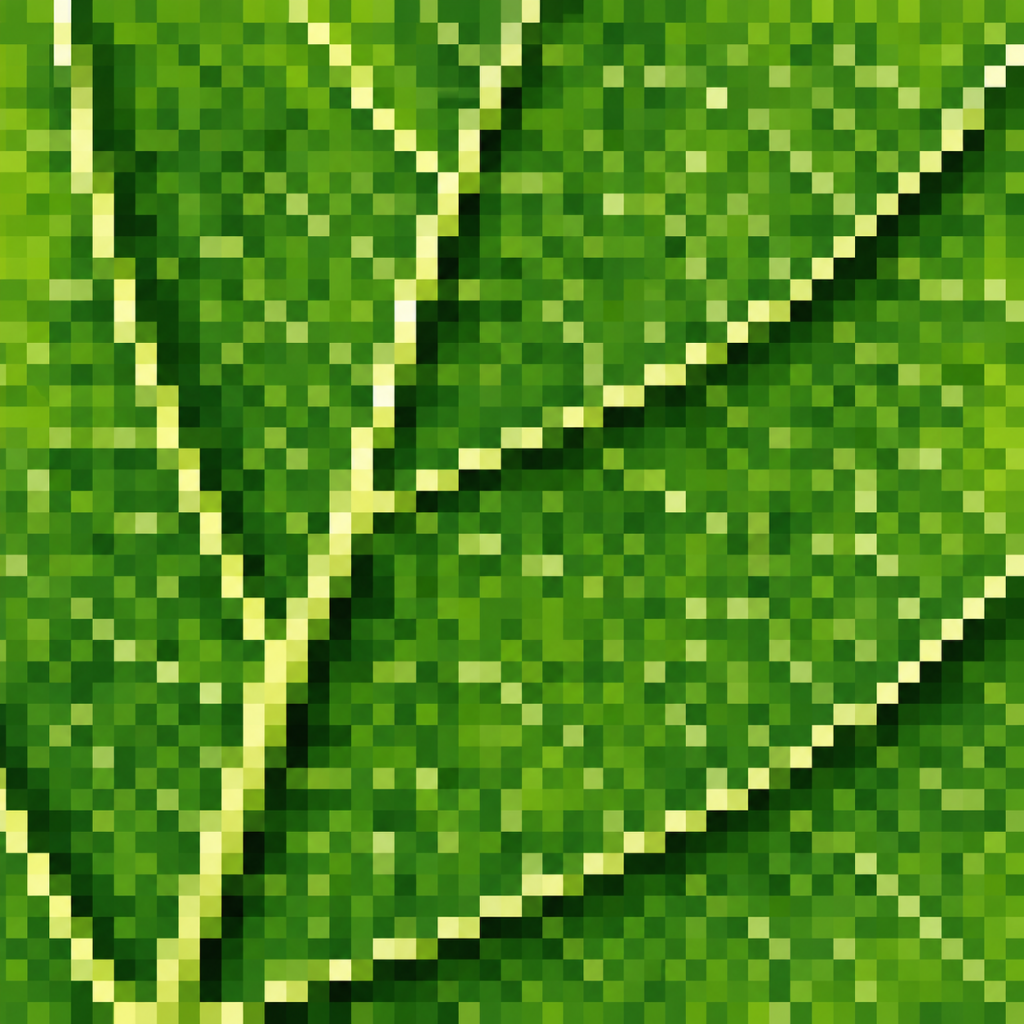
Too few pixels for the size
Three terms worth knowing
Pixel dimensions
The total width and height of an image in pixels, such as 3000 x 2000 px.
PPI
Pixels per inch. How many image pixels fit into each inch of the printed image.
DPI
Dots per inch. A measure of printer output, often used loosely when people mean PPI.
What should I aim for?
Vector artwork and live test can remain sharp without a fixed pixel resolution.
Close-viewed print
300 ppi at the final size is a useful starting point for photographs and raster artwork.
Large posters & signage
Viewing distance matters. Ask your printer what resolution they need at the final finished size.
Websites & social media
Focus on pixel dimensions and file size. Changing the PPI label alone does not add screen detail.
The same image. Two print sizes.
The pixel count stays the same. Printing larger spreads those pixels over more space.
| Image | Print resolution | Approximate print size |
|---|---|---|
| 3000 x 2000 px | 300 ppi | 25.4 x 16.9 cm |
| 3000 x 2000 px | 150 ppi | 50.8 x 33.9 cm |
Changing the number does not restore detail
Resizing without resampling
Changes the relationship between print size and PPI while keeping the same pixels.
Resampling
Adds and removes pixels. Enlarging can estimate new detail, but it cannot reliably recover the original detail that was never captured.
Check it in your software
Judge image resolution at its final placed size, not just the original file settings.
Photoshop
Open Image Size. Check the pixel dimensions, intended print size and resolution. Turn off Resample to see how print size changes with the existing pixels.
InDesign
Select the placed image and check Effective PPI in the Links panel. Enlarging an image lowers its effective resolution.
Common mistakes to avoid
Changing 72 to 300 and expecting sharper artwork
Check the actual pixel count and final print size.
Using small website image for a larger poster
Find a larger original or choose another image.
Assuming a PDF guarantees sharp images
Check the images inside it and the export settings.
Before you send the file
Check the images at their final size
Confirm your printer’s resolution requirements
Keep text and logos as vectors where possible
Check the exported file for unwanted downsampling
related guides
RGB vs CMYK
View guide
File formats explained
View guide

Let’s work together on your
next web project
Every project is a journey, and we are here to guide you every step of the way.